How to Edit Text on a WordPress Page
Last updated: November 18, 2026
On this page
 https://knowledgebase.actonbv.com/knowledgebase/how-to-edit-text-on-your-wordpress-website/
A practical guide for Acton BV website editors
Quick answer
To change text on your WordPress website, log in, open Pages > All Pages, find the relevant page and edit the text in its editor. Preview your changes before selecting Update, then check the live page. The exact editor will depend on how your website was built.
Before you begin
- Have your WordPress login details and permission to edit the page.
- Prepare the correct replacement wording and obtain internal approval where needed.
- Open the current public page in another browser tab so you can compare it afterwards.
- Check which editor your website uses. Some Acton BV sites use the WordPress block editor and Kadence Blocks; older or customised websites may use Beaver Builder or another editing interface.
If you are unsure which part of a page to edit, contact Acton BV before making changes.
How to change text on a page
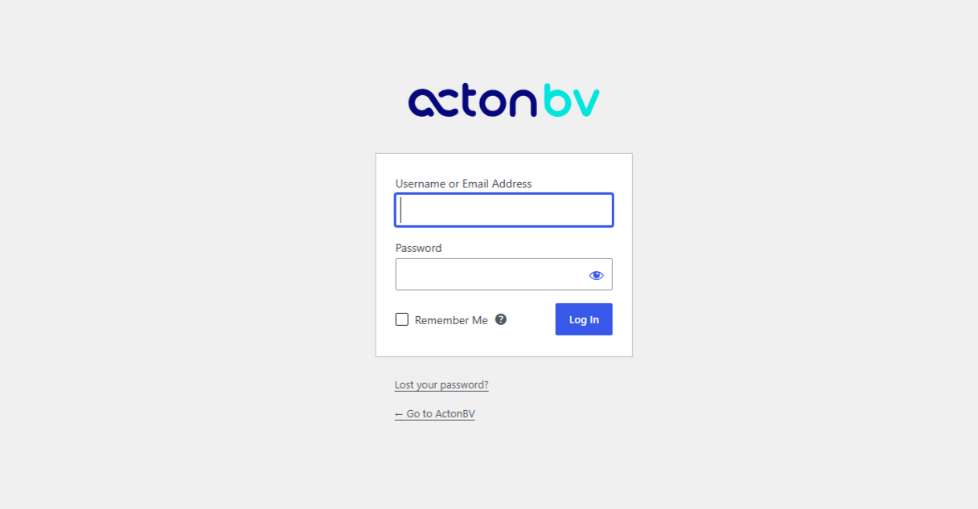
Step 1: Sign in to WordPress
Use the login link provided during your website handover or training. Many WordPress websites use /wp-admin, but Acton BV websites may use a different login address. Do not assume another website’s login address will work for yours.
Step 2: Find the page
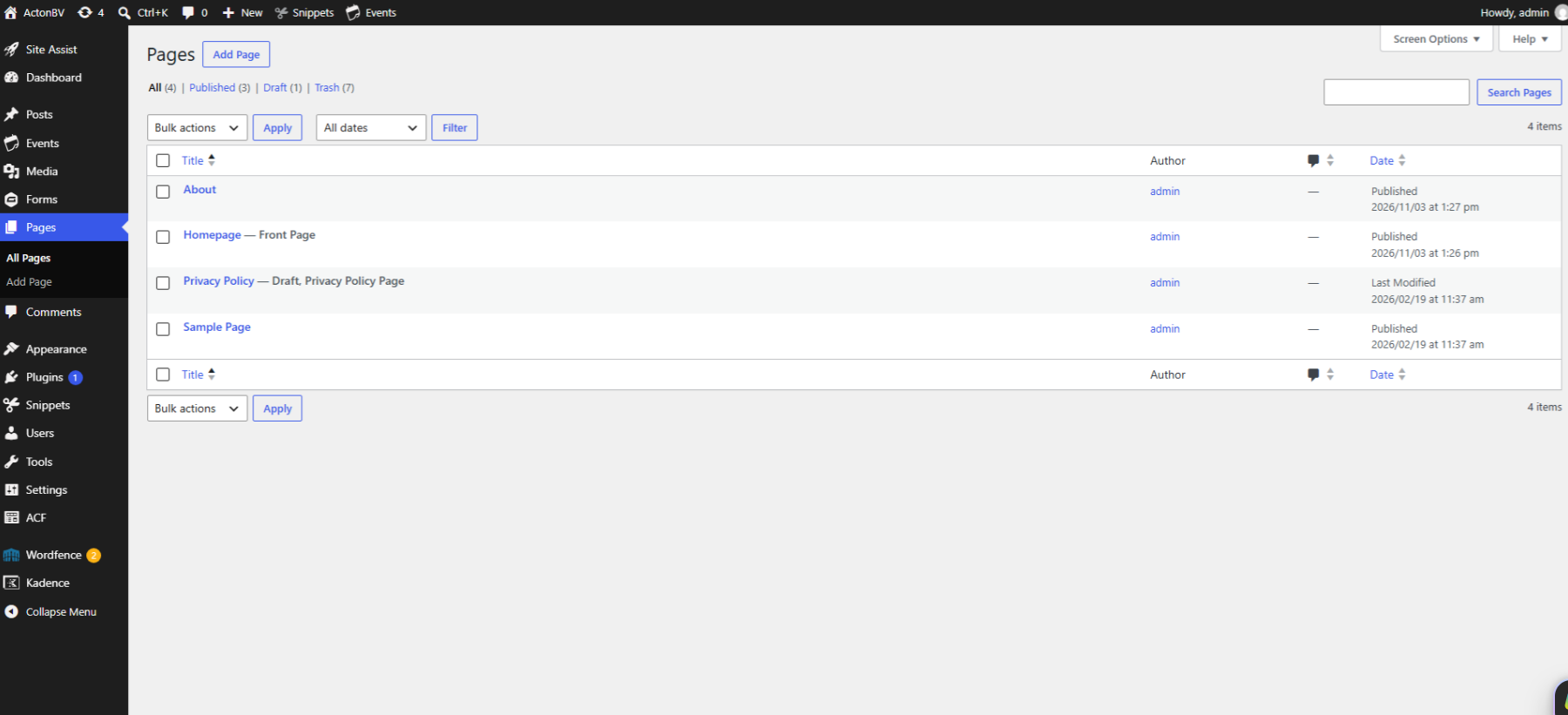
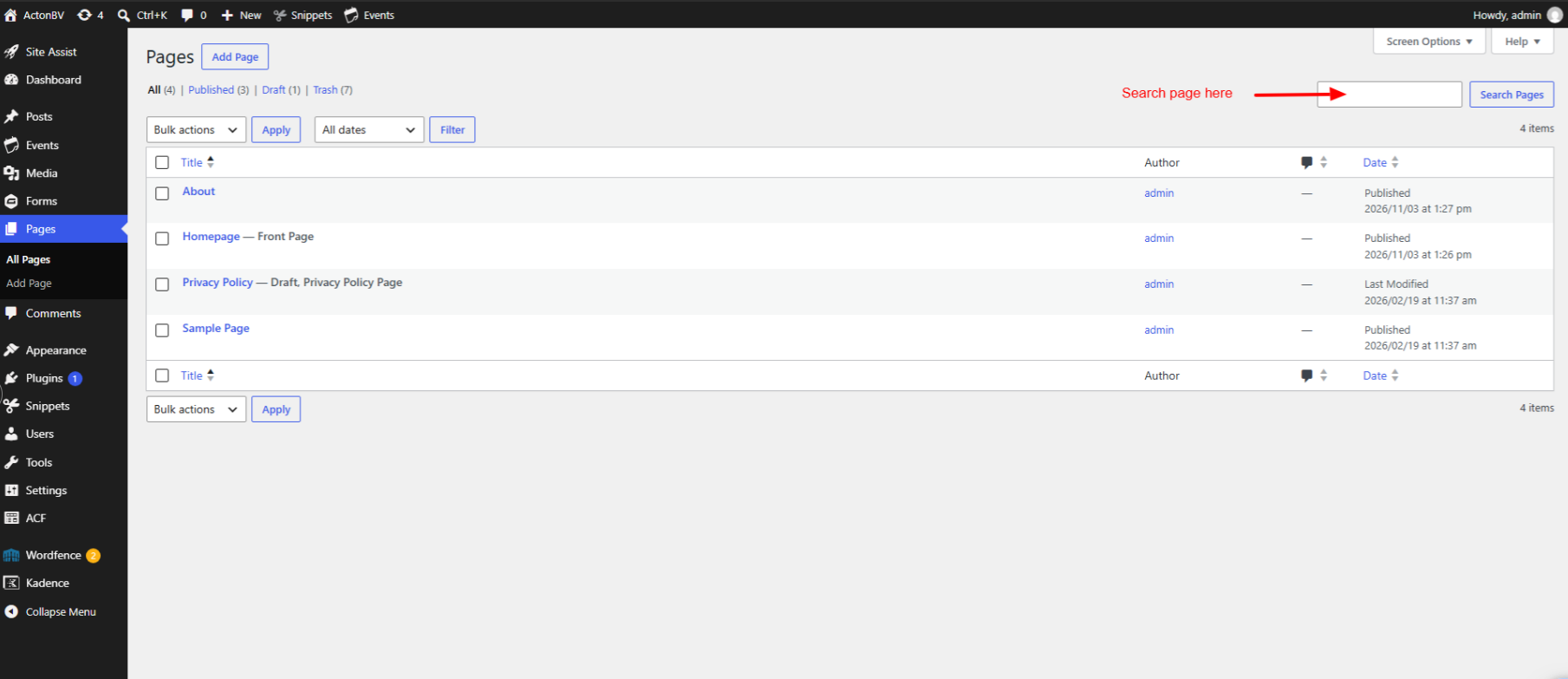
From the WordPress dashboard, select Pages > All Pages. Search for the page title and open the matching page. If you cannot find it, the content may be managed through a custom section or a different page title.
Step 3: Find the text in the editor
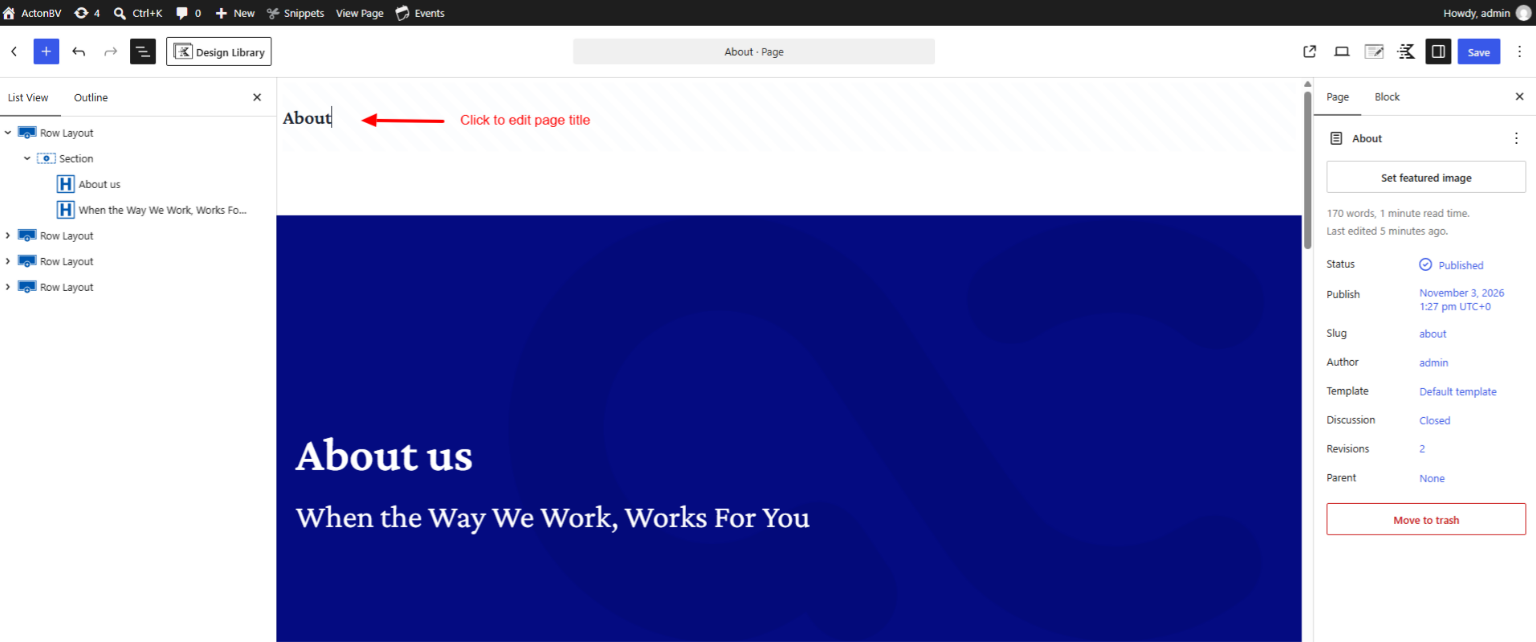
Locate the paragraph or heading you want to change. In the block editor, select the relevant text block. On sites using a page builder or custom layout, the editing controls may appear differently.
Avoid moving or deleting surrounding columns, buttons, reusable sections, images or other layout elements.
Step 4: Make the edit
Replace only the wording that needs to change. Check spelling, punctuation and whether the new text is an appropriate length for its position on the page.
If you edit a link or button as well as text, check that the destination is still correct.
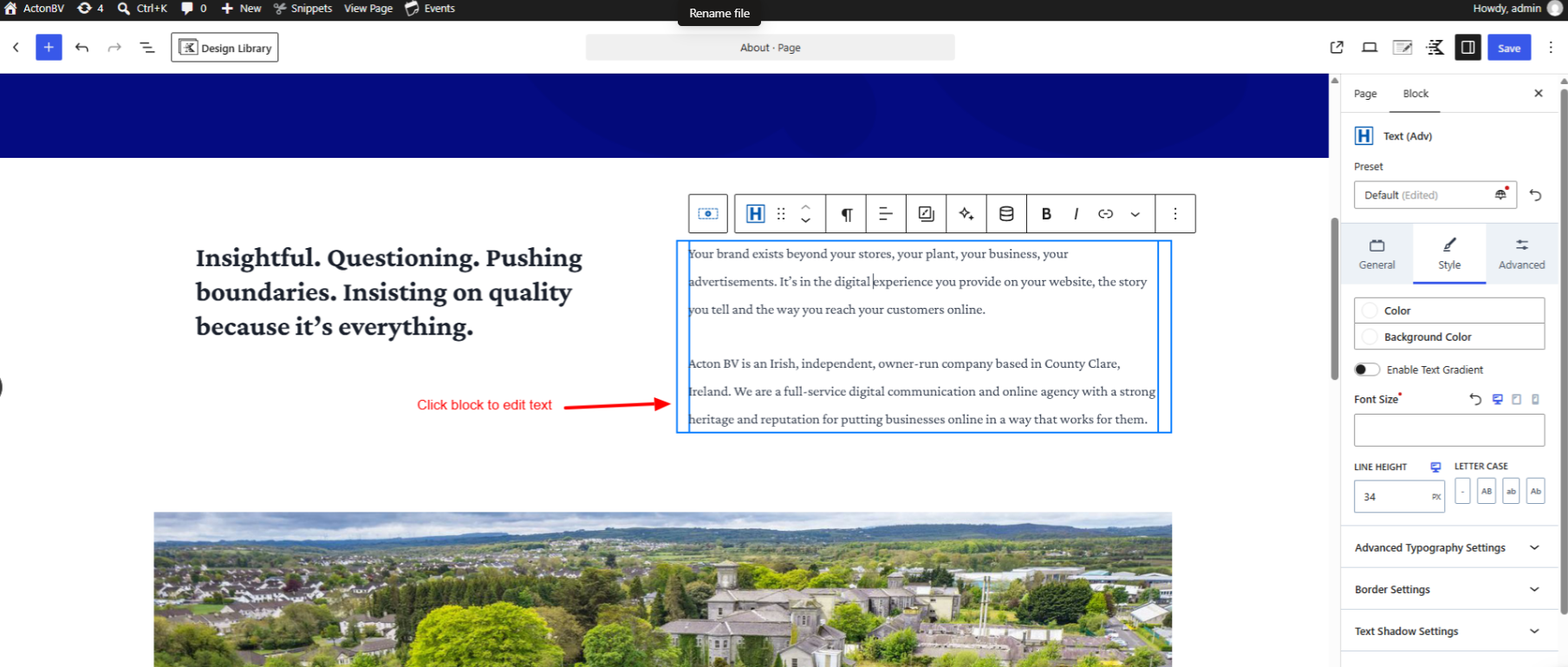
Step 5: Preview your changes
Use the available Preview option where possible. Review the page on a desktop and, where practical, a mobile screen. Check headings, spacing, images, links and buttons. The Preview controls vary between WordPress editors.
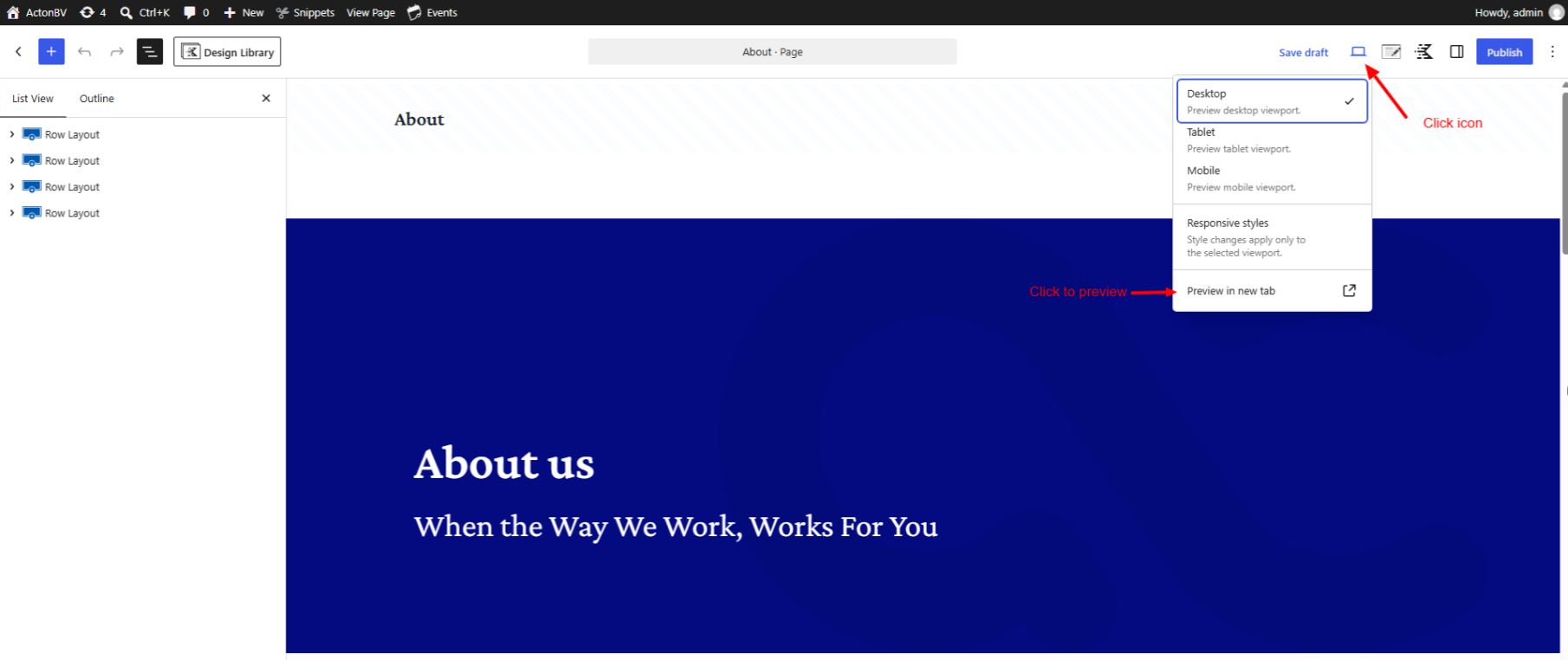
Step 6: Update and check the live page
Select Update when you are satisfied. Open the published page in a new tab, refresh it and confirm that the wording and layout are correct. If the change does not appear immediately, try a private browser window to rule out a cached version.
Common Problems
Good practice for website editors
- Use short, clear sentences and descriptive headings.
- Write links that explain their destination, such as “Download the enrolment form”, instead of “Click here”.
- Check names, dates, prices, opening hours and contact details carefully.
- Avoid publishing personal information unless it is necessary and authorised.
- Review the final page on mobile as well as desktop when possible.
When to contact Acton BV
Ask for assistance if a page uses an unfamiliar editor or complex layout, if you need a new section, or if an edit affects a form, payment, donation, booking system or other important functionality.
For technical problems, please use the Acton BV Support Desk. If you would like us to make a content change for you, we can confirm whether the work is included in your particular Care Plan or provide an estimate where applicable.
Support form: https://www.actonbv.com/support/
Email: support@actonbv.com
Related guides
The following Knowledgebase articles provide more detailed guidance:
- KB-003 — How to Review a WordPress Page Before Publishing Changes
- KB-007 — How to Safely Edit the Homepage in WordPress
- KB-052 — How to Write Clear Website Content for Your Visitors
On this page
https://knowledgebase.actonbv.com/knowledgebase/how-to-edit-text-on-your-wordpress-website/